wismolabs/tracking
最新稳定版本:1.0.1
Composer 安装命令:
composer require wismolabs/tracking
包简介
WISMOlabs Integration for Magento 2.3.6+, providing seamless order tracking, shipping notifications, and post-purchase marketing management.
README 文档
README
Order & Shipping Tracking Suite extension for Magento connects your store to the WISMOlabs platform, providing enhanced real-time tracking capabilities across 750+ carriers, 3PLs, and delivery companies. It also offers advanced notification capabilities, including programmable emails, SMS, and webhooks using the Liquid template engine. Platform has a built-in marketing engine that suggests, upsells, and cross-sells products within notifications, branded tracking pages, and other customer-facing components, creating better post-purchase experiences.
This extension is verified and approved by Adobe and is officially published on the Adobe Commerce Marketplace.
Important Information
Order & Shipping Tracking Suite extension for Magento 2 does not require a WISMOlabs account to try. However, it is advisable to create an account to configure the branding of customer-facing components.
Prerequisites
Magento 2: This extension requires a working installation of Magento 2.
Installation Instructions
To install the Order & Shipping Tracking Suite extension, follow these steps:
-
Log into Your Magento Server
- Log into your Magento 2 server and navigate to the root directory of your Magento installation.
-
Install the Extension via Composer
Execute the following commands to install the WISMOlabs extension:
composer require wismolabs/tracking
bin/magento module:enable Wismolabs_Tracking
bin/magento setup:upgrade
Configuration Instructions
After installing the Order & Shipping Tracking Suite extension for Magento, you need to configure it in the Magento admin panel:
-
Step 1: Navigate to WISMOlabs Settings
-
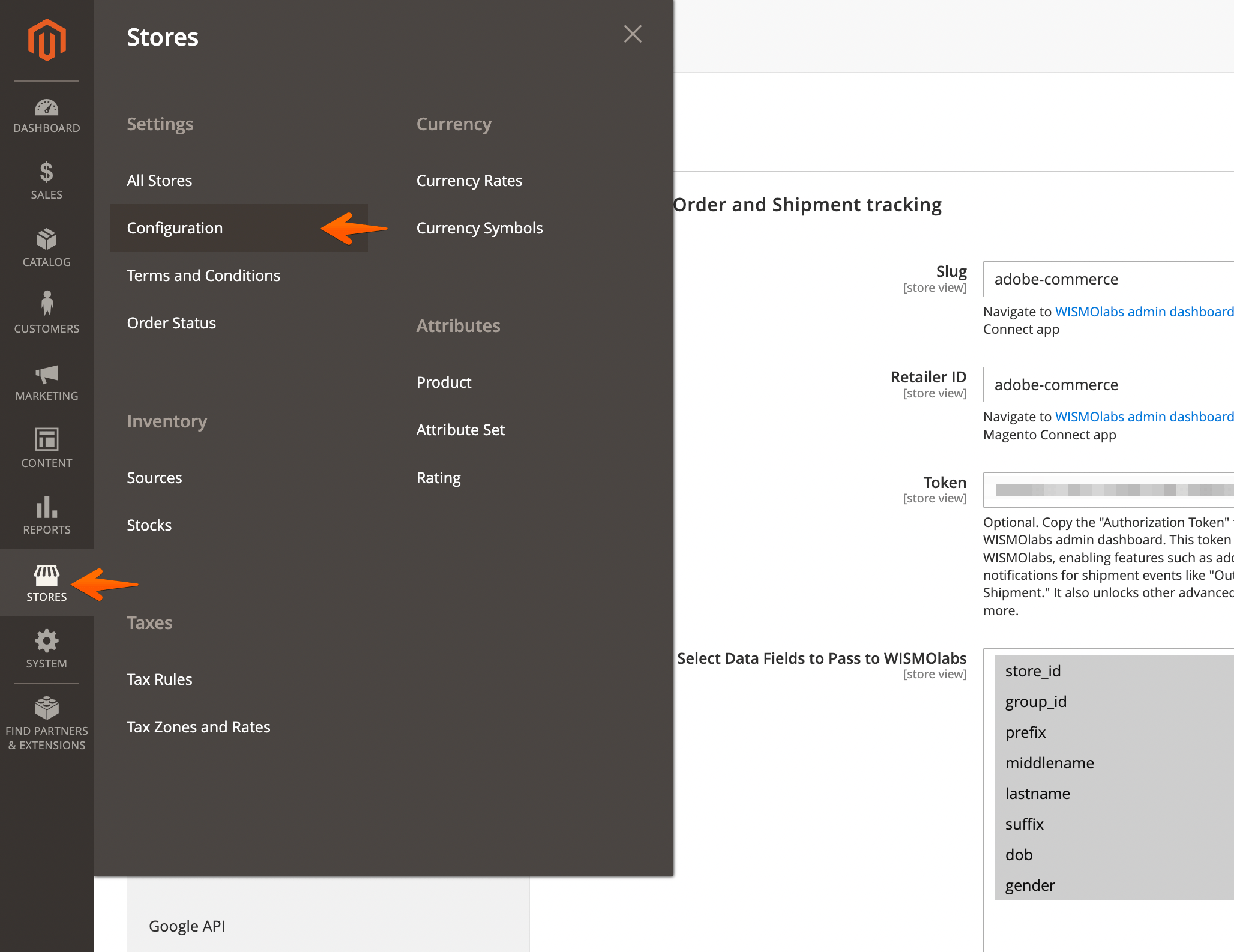
From your Magento Admin dashboard, go to Stores > Configuration.
-
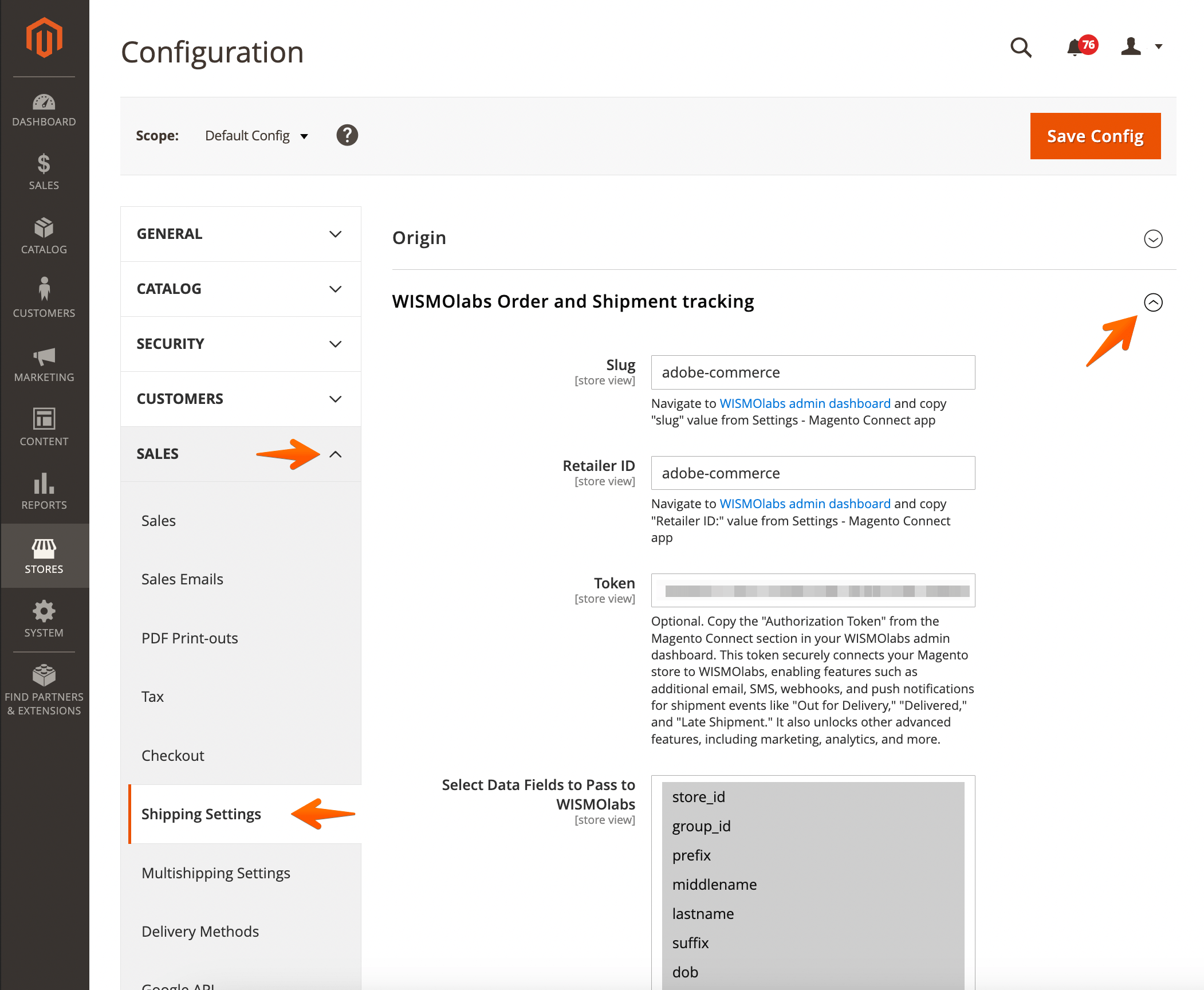
In the left sidebar, locate Shipping Settings under Sales.
-
Expand WISMOlabs Order and Shipment Tracking to access settings and configurations.
-
-
Step 2: Configure the Fields
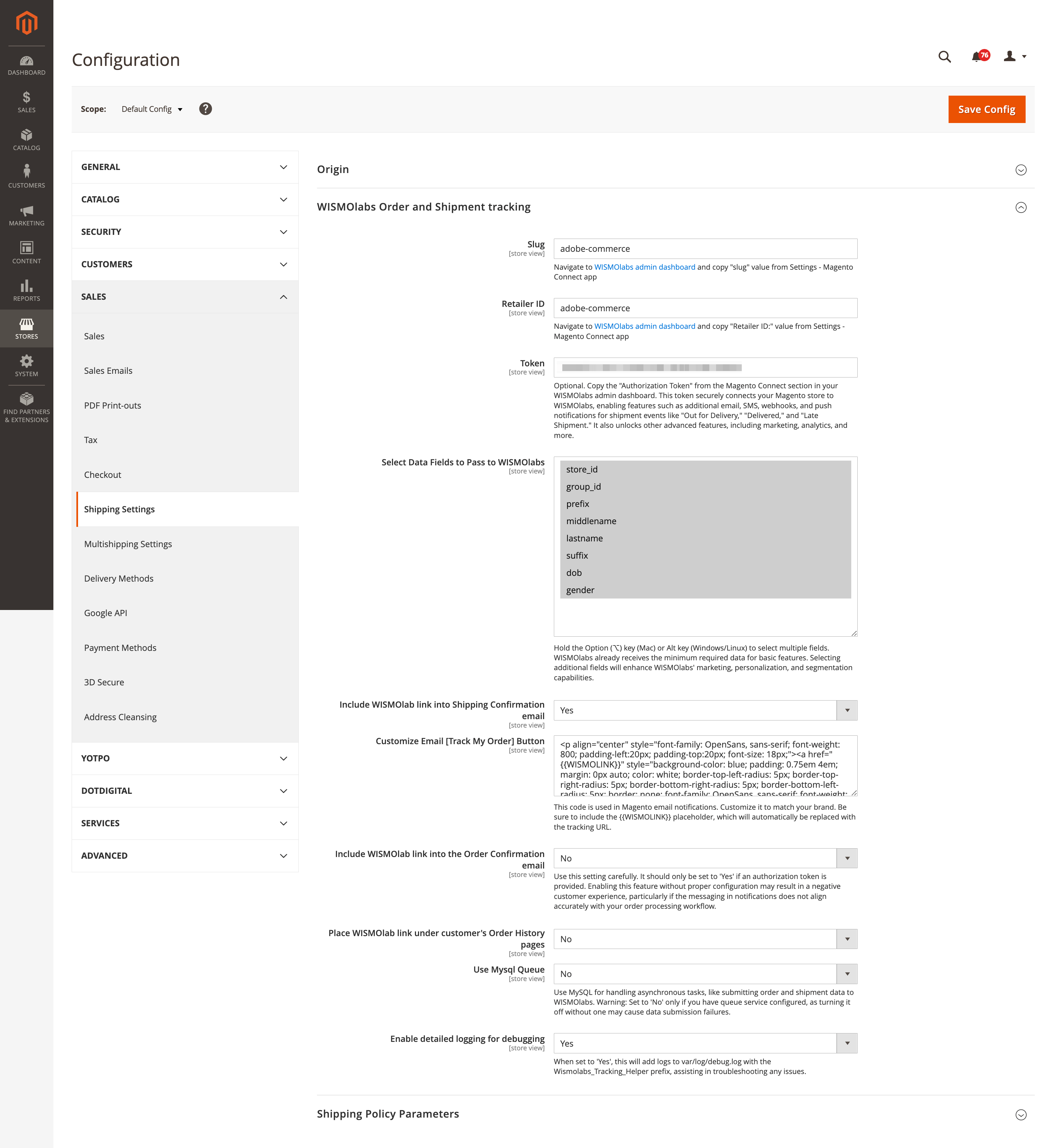
If you are just trying out the extension and don't have the configuration you may leave theses field in their default state.
-
Slug: Copy the "Slug" from the WISMOlabs admin dashboard under Settings > Magento Connect app and paste it into the "Slug" field.
-
Retailer ID: Copy the "Retailer ID" from the WISMOlabs admin dashboard under Settings > Magento Connect app and paste it into the "Retailer ID" field.
-
Token (Optional): Copy the "Authorization Token" from the Magento Connect section in your WISMOlabs admin dashboard and paste it into the "Token" field. This token is required for features like email/SMS/webhooks notifications and advanced analytics.
-
Select Data Fields to Pass to WISMOlabs: Use Ctrl (Cmd on Mac) + click to select multiple fields. Include fields such as store_id, group_id, prefix, lastname, dob, etc., based on your requirements.
-
-
Step 3: Optional Settings
-
Include WISMOlabs Link into Shipping Confirmation Email: Set to "Yes" if you want the tracking link to appear in shipping confirmation emails.
-
Customize Email [Track My Order Button]: Modify the HTML/CSS code for the tracking button if needed. Use the placeholder {{WISMOLINK}} to insert the tracking link dynamically.
-
Include WISMOlabs Link into the Order Confirmation Email: Set to "Yes" only if the Authorization Token is enabled and you have a working WISMOlabs account.
-
Place WISMOlabs Link under Customer's Order History Pages: Set to "Yes" to add the tracking link to the customer's order history section.
-
Use MySQL Queue: Enable if you want to handle asynchronous tasks via MySQL.
-
Enable Detailed Logging for Debugging: Set to "Yes" to log details in var/log/debug.log with the Wismolabs_Tracking_Helper prefix for troubleshooting.
-
-
Step 4: Save Configuration
-
Click the Save Config button in the top-right corner.
-
Flush the cache by navigating to System > Cache Management and clicking Flush Magento Cache.
-


Additional Information
Support: For any issues or support requests, please contact our support team at wismolabs.com
Documentation: For more details on configuration options and using the WISMOlabs platform, visit our help center.
Uninstall Instructions
If you need to uninstall the extension, you can do so using the following commands:
bin/magento module:disable Wismolabs_Tracking
composer remove wismolabs/tracking
bin/magento setup:upgrade
By using WISMOlabs, you can provide your customers with up-to-date shipment information and personalized post-purchase communications to boost customer satisfaction and loyalty.
统计信息
- 总下载量: 7
- 月度下载量: 0
- 日度下载量: 0
- 收藏数: 2
- 点击次数: 0
- 依赖项目数: 0
- 推荐数: 0
其他信息
- 授权协议: MIT
- 更新时间: 2024-10-30